

Key Points
- You can start a new server and become the host or join someone else’s server.
- You will find the Host or Multiplayer option in the main menu.
- Selecting Host is recommended for players who wish to create a world, whereas heading over to Multiplayer will allow you to join someone else’s server.
Project Zomboid can get tedious if playing on your own. But there is a way to include your friends too, as you can all work together. You can either host a server for your friends or join your friends in their world through the multiplayer menu in the game.
Read More: How to Stay Fit in Project Zomboid
Project Zomboid – Multiplayer Overview
| Max players | 101 |
| Private lobbies available? | Yes |
| Public lobbies available? | Yes |
How to Host a Game
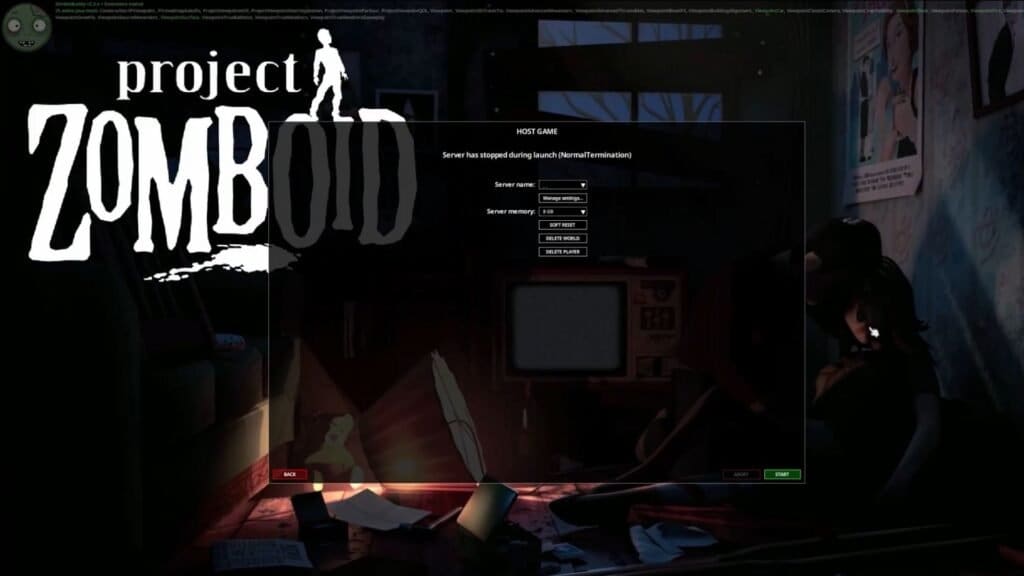
In the main menu for Project Zomboid, if you look to the left, you will spot several options. This includes the options for Multiplayer and Host. Select the Host option if you wish to open a server for your friends. Over in the Host menu, you can add a name for your server, select the RAM required to run it, and even delete any existing world or kick out players.
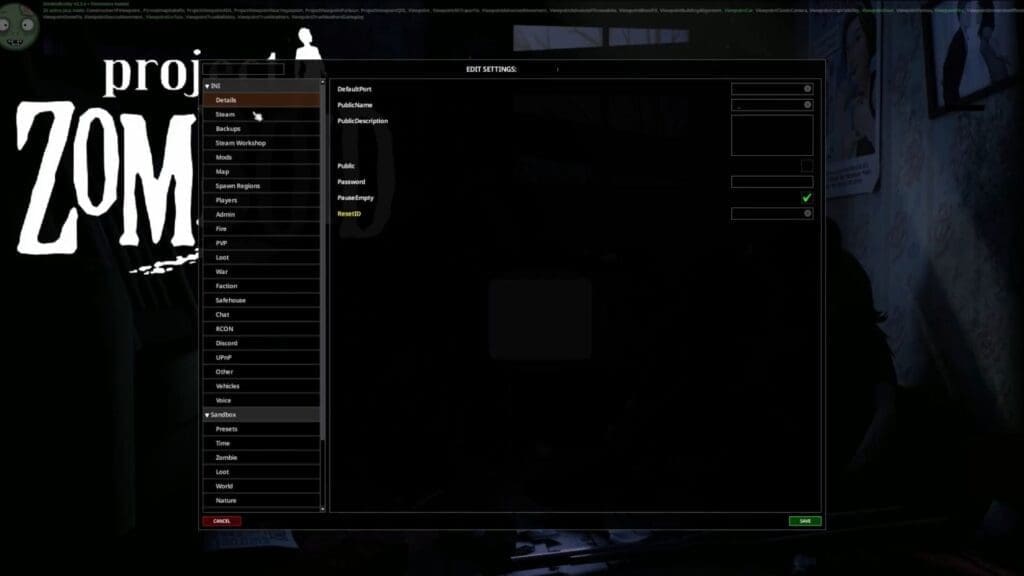
You can also change the server’s settings and add any mods that you own by clicking on the Manage Settings option. This is also the place where you can set your server as public or private and add passwords if it is invite only. There are several other settings you can change, such as how frequently you would like zombies to appear, the resource spawn availability, and more.
Select the green Start button at the bottom of the screen once you are done. Then, you can go ahead and open Steam and head over to your friends list, or press Shift + Tab to be taken there directly. Select any of your friends from your list and right-click on it. You can send your invites to your friends here, and once they accept it, they will join your in-game world.
How to Join Game
The process to join someone else’s server is quite simple. First, select the Multiplayer option in the main menu, then select the Internet tab. Get the name of your friend’s server and type it in the search bar. Click on the Connect button at the bottom of the screen after selecting the server. Then, type in your username and password if required and click on Connect again. You can then load the server up and join your friends in their world.
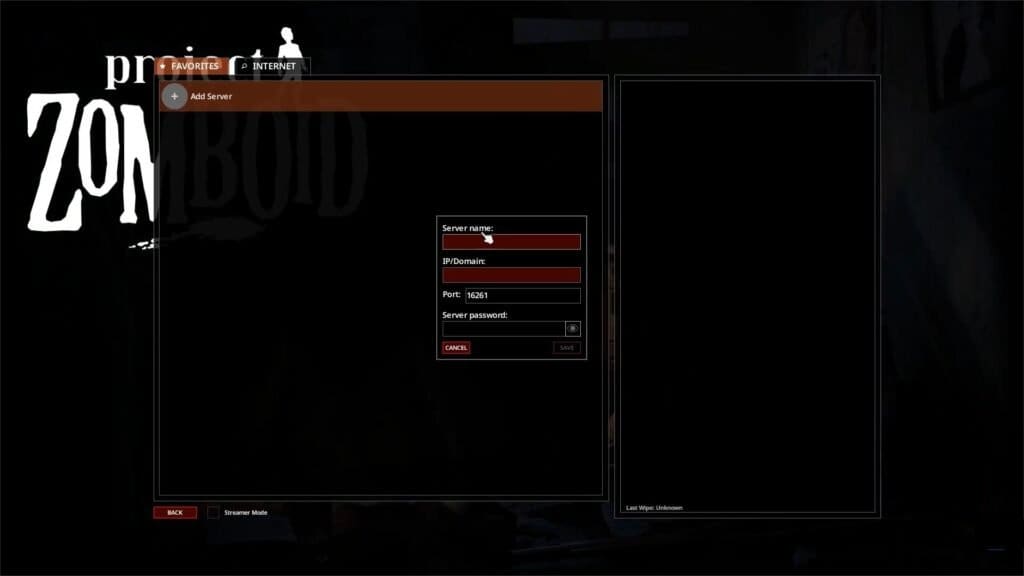
You can also set certain worlds as your favorites so you don’t have to search for them again. After selecting Multiplayer, click on Add Server under the Favorites tab. You can now add the server name, IP address, port, and password, if any. Click on Save to add it to the list. You can also add your username and account under your favorite server so you don’t have to repeat those steps either. Now each time you load into the Multiplayer section, you can click on the Connect button to automatically join your favorite server.
FAQs
I don’t know what port number to use; what do I do?
By default, the port number is 16261, but it could change if the host has changed it.
How much RAM should I allocate?
It is recommended to use 4 GB of RAM while hosting, since each member will add 200 MB extra to your host connection.
How do I set a particular spawn point for my friends?
If you wish to have all your friends spawn in one location, select the Spawn Regions tab under Manage Settings in your host screen and add the coordinates within the SpawnPoint textbox.
