
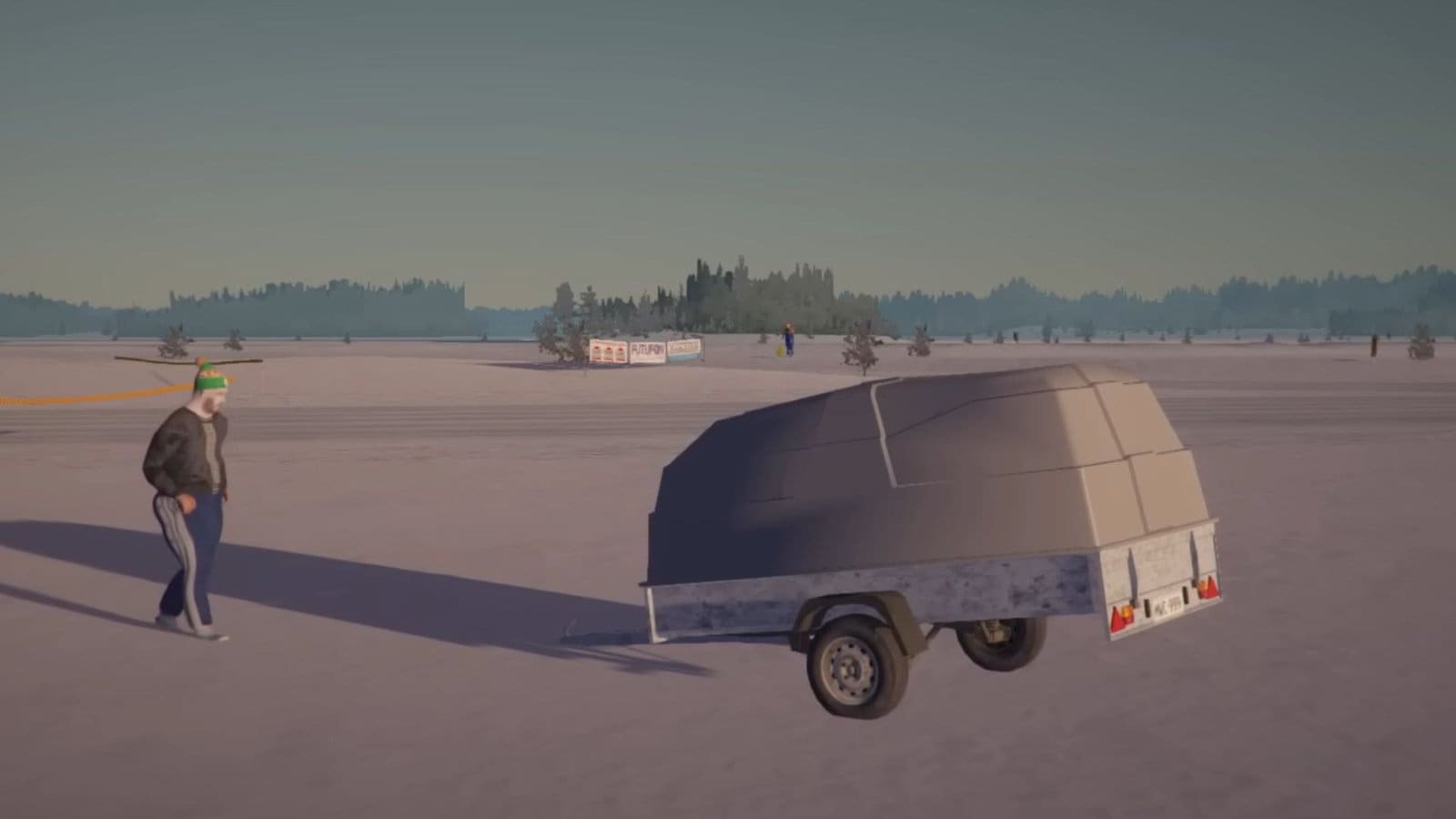
Key Points
- You will require BepInEx to run some of the mods for the game.
- Mods for My Winter Car are available at Nexus Mods.
- There are several steps to follow to install and use mods.
Using mods is not that uncommon, especially for a game like My Winter Car. If you would like to enhance your gameplay experience or add something to make the game better, then using mods is for you.
Read More: My Winter Car – How to Make and Sell Kilju
My Winter Car Mod Installation – Step-by-Step Guide
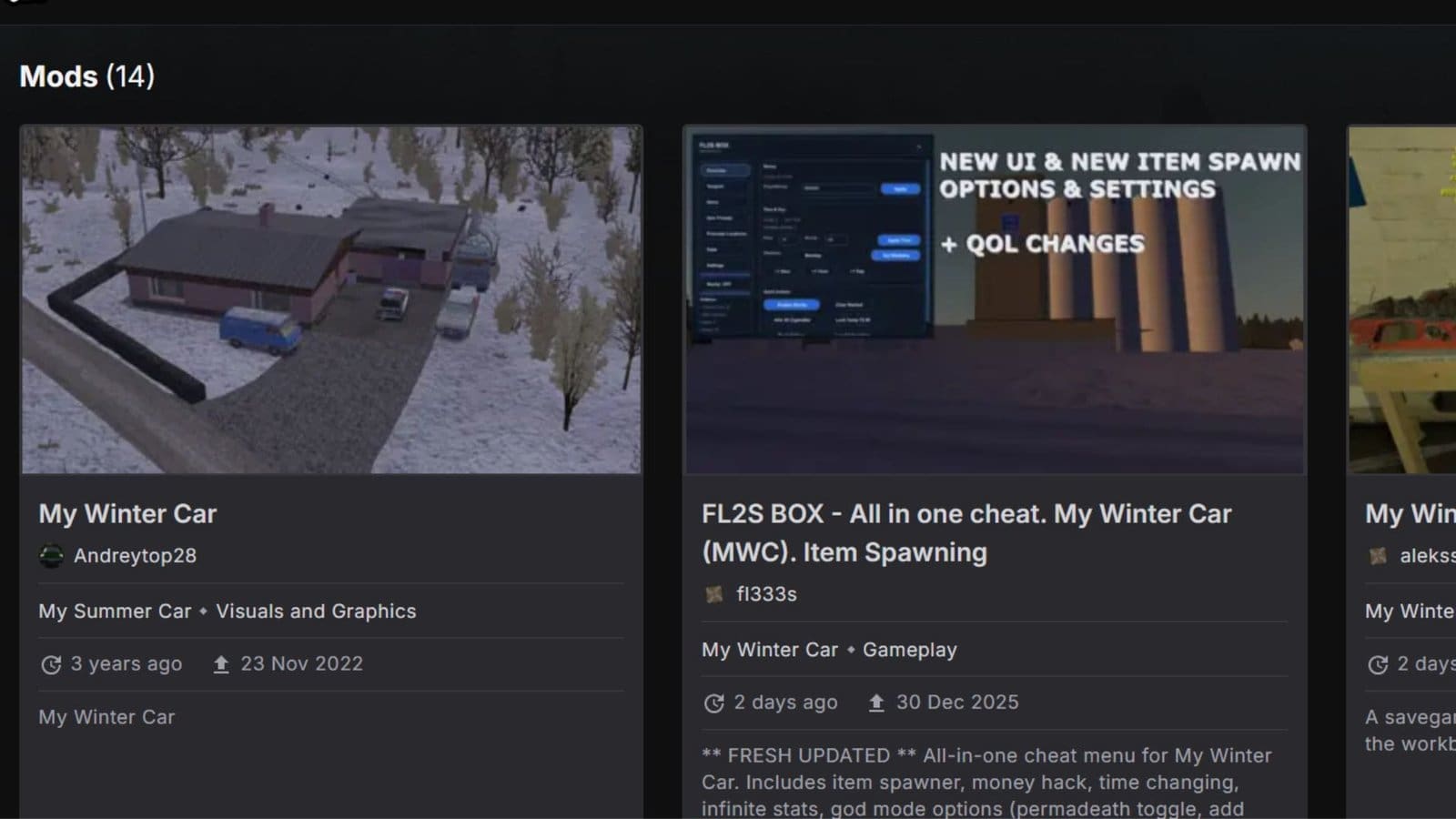
- Open up your web browser and head over to Nexus Mods.
- Sign up and make an account on the website.
- Once done, search for My Winter Car.
- Select any mod you want, then select the Files tab of the Mods page.
- Then select the Manual Download option > Slow Download.
- Some mods will require BepInEx, so check the mod’s description page to know if any plugins are required.
Installing BepInEx
- Once you have your mods and BepInEx downloaded, head over to the Downloads folder where they are placed.
- Unzip the BepInEx first and copy everything within the BepInEx folder.
- Open Steam, scroll down the library to find My Winter Car.
- Right click on it, then select Manage > Browse Local Files to show the game folder locally.
- Paste the BepInEx files within the game’s folder.
- Launch the game, then quit the game. This is to check whether BepInEx keeps the game stable.
- If it crashes, then download another version of BepInEx and repeat the above steps.
Installing Mods
- Now, head back to your Downloads folder and start extracting your mod zip files.
- Open the mod folder once done, then copy all the files or folders within the mod folder.
- Head back to the local folder for My Winter Car and paste the mod files into the BepInEx folder.
- For mods that don’t require BepInEx, extract the mods, then check the mod folder.
- There will be an instruction note on how to use the mod that you can read.
- Copy the files within the mod folder, then paste it within the My Winter Car save folder in AppData > LocalLow > Amistech > My Winter Car.
Running My Winter Car Mods
- Close all the folders and restart your system before launching the game.
- Once the game starts up, check if you are able to play, or if the game is crashing.
- Running the game as Admin will help bypass most issues. Just go to Steam > My Winter Car and right-click > Manage > Local Files, then right click on the .exe file of the game and Run as Admin.
Read More: My Winter Car – How To Fuel The Car
FAQs
Why does my game crash after installing mods?
There could be several reasons for it. Check whether downloading another version of BepInEx helps, or remove the mods entirely. Make sure that you have quit your game while tweaking the game files. Also, running the game as admin also helps.
What type of mods can I use?
Any mod available under the My Winter Car page on Nexus mods is usable, as long as you follow the step-by-step instructions to install them.
What do I do if I want to revert to my previous game version?
You need to create a backup of your game’s save files if you wish to undo any changes made while tweaking the files.
