

Key Points
- You will unlock the Blueprints feature at D.G Member level 8.
- The Blueprints feature will be added to your smartwatch.
- Selecting the Blueprint feature lets you import your current build to save it for future use, or edit any existing or new building.
Heartopia lets you build a cozy nook to call your own, and you get to customize it with furniture of your choosing. Eventually, if you wish to move on with a new structure but also wish to save your current one, you might want to look into the Blueprints feature. With this, you get to import your current build or even use or edit an old build if you have it saved here.
Read More: Heartopia – The Complete Rainbow Event Guide
Heartopia – Blueprints Overview
| Blueprint unlock level | Level 8 |
| Blueprint location | Smartwatch |
| Blueprint uses | Import or export housing builds |
| Items imported and exported | Building materials, furniture, and planting plots. |
How to Import Blueprints
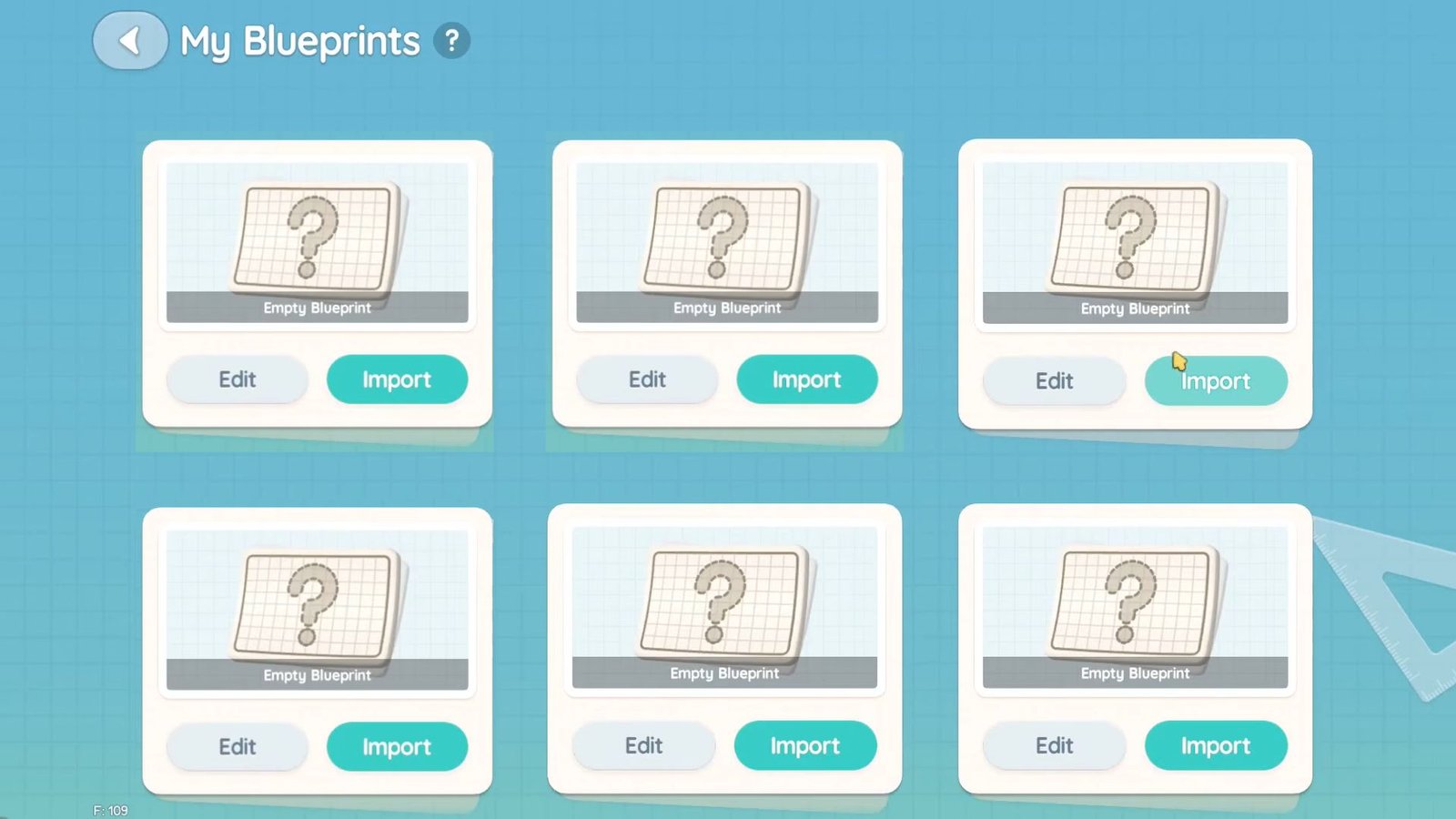
First, I had to select the Blueprint feature from my smartwatch, then select an empty slot to start the process. There are two options after slot selection: Edit and Import. After selecting the Import option, I then had to select whether I wished to import my current build or use an existing build. Once selected, I was taken to the Create Blueprint menu. After adding a Blueprint name and image here, I clicked on Confirm to save changes.
Imported Blueprints Features Explained
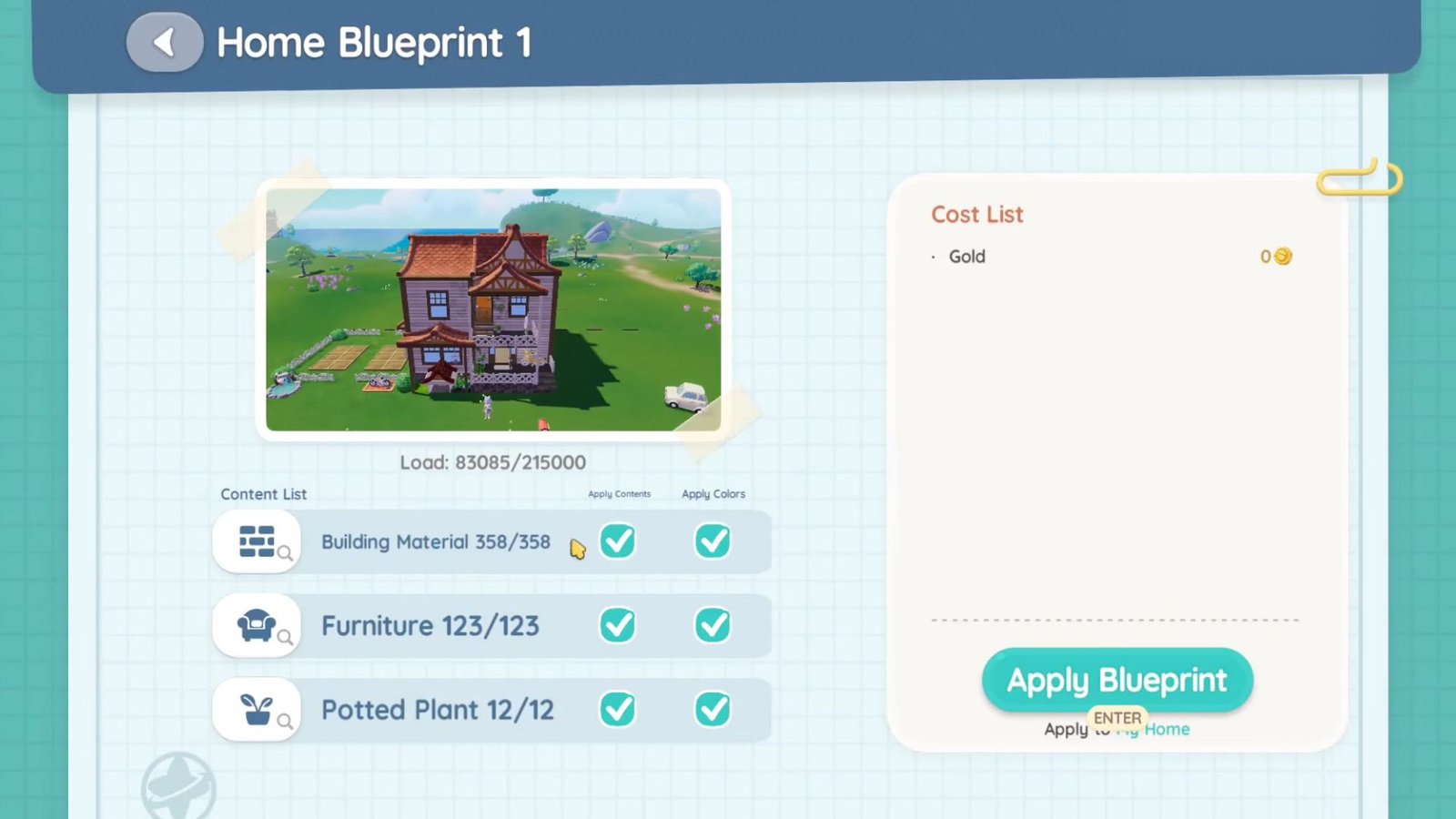
After selecting the Confirm option during the Import process, you will be taken to the Home Blueprint menu. Under this, you get to view the total Building Material, Furniture, and Potted Plants used. You get to view the materials and items used to build the house by clicking on the magnifying icon below the Content List for each option. This will give you an insight into all the materials used for the current build.
How to Change Imported Blueprints
Under the Apply Contents row, you get to deselect Furniture and Potted Plants if you don’t wish to carry them over. Building Materials will always stay standard since this is a requirement when importing buildings. But furniture and potted plants are optional. Also, you get to add or remove dyes by checking the options under Apply Color. If deselecting the dye, you will be refunded the dye amount.
How to Edit New Blueprints
Select an empty slot and click on the Edit feature. This will take you to an empty field, where you are free to build with your existing items. After building, save the blueprint to have it stored. Your new blueprint will not be placed in your world unless you use it.
How to Use Blueprints

To use the blueprint, select it from the Blueprint menu. You will then be taken to the house repositioning screen. You get to drag the house around within the available plots, or even rotate the house using the rotate tool on the left. Click on Confirm after the house repositioning to be taken back to the Blueprint menu to finalize your plan.
How Does Cost List Work
On the right side of the Blueprint menu, you will see the amount of gold spent on your new house. If the new house is smaller than your existing house and uses fewer materials, you will get a refund for all the unused materials from your previous house. The opposite is true if you are shifting to a bigger house. You will get a Cost list showing you the amount of gold and dyes you need to spend to build your new home.
FAQs
What do the Import and Edit features mean?
The Import feature lets you save your current house blueprint, while the Edit feature lets you edit an existing or new blueprint.
Can I replant flowers from a different build?
If the plants have not been harvested from the saved plot, then you will find them in your inventory to be replanted in your new plot.
Will I get a refund for items not used in my new build?
Yes, you will get a Coin or Dye refund if they were not used in your new build.
